How to set up ChatGPT on Android for maximum productivity
Stop using ChatGPT the wrong way on Android. Discover the essential setup tips, voice features, and app integrations that actually work.
·2 min read
Many users treat ChatGPT on Android as a simple question-and-answer tool, missing out on its true potential. Optimizing the app settings can fundamentally transform your mobile productivity and daily workflow.
- Essential Android setup steps for ChatGPT
- Configuring Custom Instructions and tone
- Using background voice conversations on the go
- Integrating Gmail, Google Calendar, and Notion
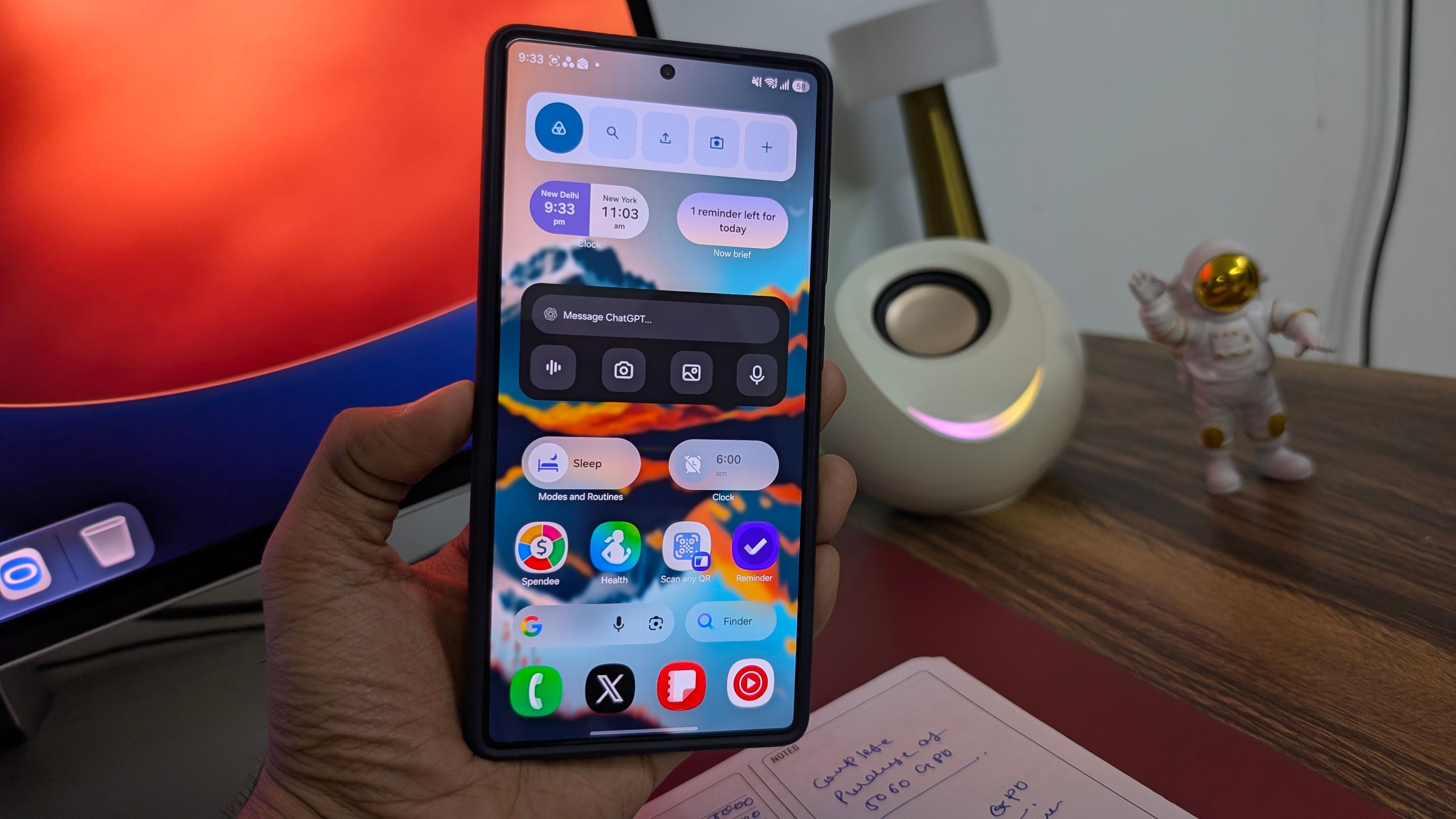
Quick access and default assistant settings The first step to improving your ChatGPT experience on Android is optimizing how you launch the app. Adding the ChatGPT widget to your home screen provides instant shortcuts to start a chat or use voice without navigating through the app drawer. You can also set ChatGPT as your default digital assistant in Android settings. While it lacks the deep system-level hardware control of Google Gemini, launching it via gesture or shortcut is vastly more convenient for quick prompts.
Personalization and custom instructions Sticking with the default personality often leads to generic or overly lengthy responses. Experimenting with the personalization settings allows you to dial down unnecessary headers and adjust the overall tone. The real game-changer is Custom Instructions. By adding details about your profession, preferred writing style, and formatting preferences, ChatGPT learns to deliver concise, practical answers without constant correction.
Voice mode and background conversations Typing out lengthy prompts on a mobile device is rarely efficient. Natural voice interactions allow you to brainstorm ideas, ask follow-up questions, and explore topics while walking or multitasking. Enabling background conversations in the voice settings lets you keep talking even when switching between apps or locking your phone, making the AI feel much more like a natural conversational partner.
Read alsoOpenAI begins testing ChatGPT dot with Plus users and expands Business accessService integrations and scheduled tasks ChatGPT becomes significantly more useful when connected to your daily productivity stack. Integrating Gmail, Google Calendar, Notion, and Google Drive brings your workflow into one unified interface. Instead of app-switching, you can ask ChatGPT to summarize emails, check upcoming appointments, or retrieve documents. Scheduled tasks also enable automated daily briefings and reminders using natural language.
What this means for users and workflow automation Properly configuring ChatGPT on Android turns a basic chatbot into a tailored assistant that understands your context and preferences. For professionals managing multiple tasks and deadlines, these setup changes significantly reduce friction and save valuable time.
Source: Android Police