Google Chrome: how to save 2 hours of battery life
Learn how to optimize your laptop battery life by adjusting Memory Saver and Energy Saver settings in Google Chrome for a more efficient browsing experience.
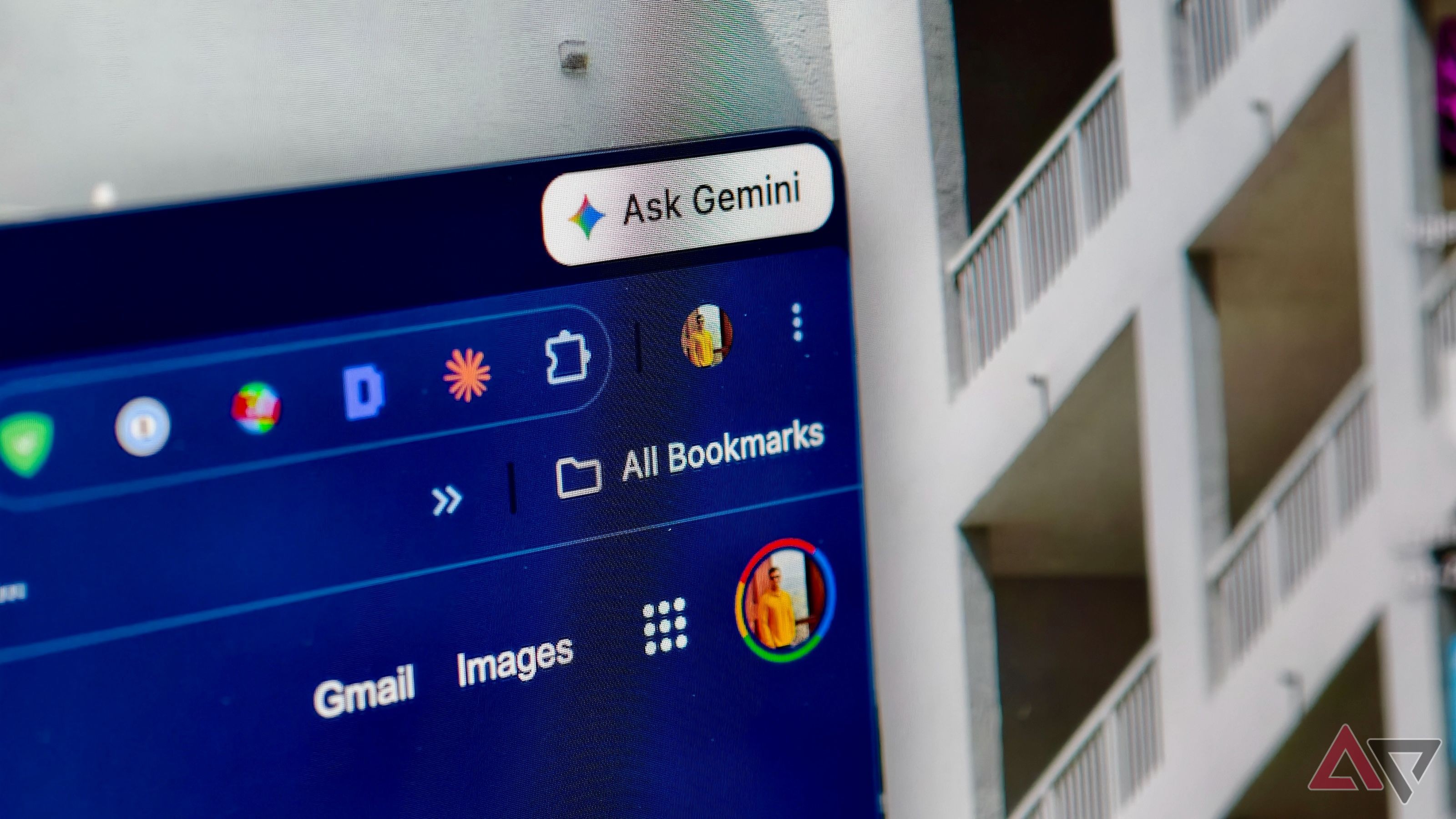
Google Chrome is notoriously demanding, often draining battery life faster than other browsers due to its high memory consumption. Fortunately, two specific built-in settings can significantly extend your laptop's battery performance during daily tasks.
- Memory Saver suspends inactive tabs to free up system resources.
- Energy Saver limits background processes and visual effects.
- Combining both settings can add up to two hours of extra battery life.
- These features are accessible via Chrome’s performance settings menu.
Optimizing Performance with Memory Saver
Memory Saver monitors your tabs and puts those you haven't visited in a while into an inactive state. While Chrome defaults to a Balanced setting, switching it to Maximum can provide noticeable gains, especially on older devices. This feature helps manage RAM usage effectively, ensuring that your processor isn't working overtime to maintain dozens of background pages that you aren't currently using.
Leveraging the Energy Saver Mode
Read alsoRussian Central Bank allows retail investors to buy Bitcoin, Ethereum and USDTEnergy Saver acts as a vital tool for travel or remote work, automatically throttling background activity, page animations, and frame rates once the laptop is unplugged. Enabling this to trigger when the charger is removed is the best way to ensure maximum longevity. If you experience buffering while streaming, Chrome provides a quick toggle via a leaf icon in the taskbar to disable the restriction for specific sessions.
Why this matters for users
For professionals and students who rely on Chrome for heavy web-based workflows, these power-saving features offer a zero-cost way to improve mobile productivity. By managing these settings, you avoid the need for external battery packs and ensure that your browser works for you, rather than against your hardware.
Source: Android Police