How to Run a Local AI in Excel Instead of Copilot for Complete Privacy
Learn how to connect the local Qwen3.5-9B model to Excel via Ollama and an add-in to work with spreadsheets safely without uploading data to the cloud.
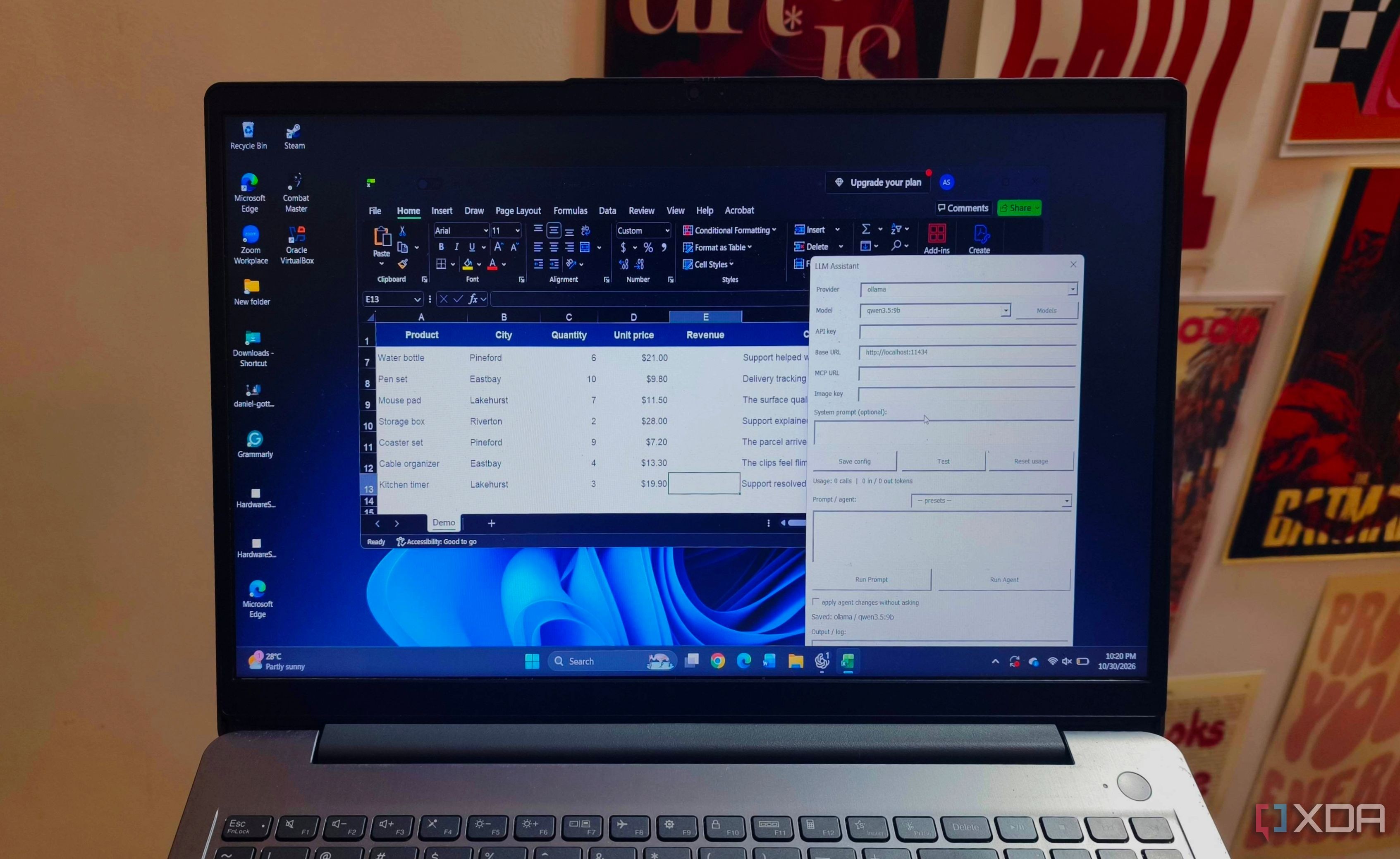
An author from the tech publication XDA has shared their experience of setting up a local language model to handle spreadsheets in Microsoft Excel. Instead of relying on the cloud-based Copilot assistant for data analysis and formula generation, the setup utilizes Ollama and the Qwen3.5-9B model running directly on a personal Mac.
- The system runs the Qwen3.5-9B model locally via Ollama with full tool-calling support.
- The Excel LLM Add-in (VBA version) connects the desktop spreadsheet application to the local model.
- Spreadsheet contents are processed entirely on the device without uploading workbook data to external cloud providers.
- The setup automates formula creation, text cleanup, and basic formatting using plain English prompts.
Why Cloud Copilot Isn't for Everyone and How Local LLMs Help
Many users keep sensitive financial reports and personal records saved locally on their hard drives. Utilizing cloud services like Microsoft Copilot requires uploading workbook contents to remote servers, which raises privacy concerns. Running local models solves this issue by keeping data isolated on the user's computer.
Modern mid-sized language models are fully capable of handling routine office tasks. The Qwen3.5-9B model running locally through Ollama can understand spreadsheet context, translate natural language requests into proper formulas, and assist in organizing messy text data without requiring an active internet connection.
Read alsoOpenCode the ultimate open-source alternative to Claude CodeThe Setup: Ollama and Excel LLM Add-in
The core components of this workflow are Ollama, a platform for running AI models locally, and an open-source project called Excel LLM Add-in. Specifically, the VBA edition of the add-in runs inside the desktop version of Excel without needing a hosted web interface or keeping a browser window open.
The installation process involves loading the .xlam add-in file into Excel, selecting Ollama as the provider, and pointing it to the local server address at http://localhost:11434. Ollama must remain running in the background while using AI features, but users do not need to keep a separate chat interface open.
Capabilities of the Local Spreadsheet AI Assistant
The resulting setup handles most everyday spreadsheet tasks effectively. The agent can take plain English descriptions and insert corresponding formulas into the workbook, such as calculating revenue based on quantities and prices or totaling orders matching specific criteria.
Additionally, the add-in includes functions to explain formulas, extract information, summarize text blocks, and assign categories to customer comments or product descriptions. It can even apply currency formatting, change headers, and generate charts from specified ranges.
Privacy Considerations and the Future of Local AI
To maintain true data privacy, users must also check their file storage habits. Automatic cloud backups via OneDrive or Google Drive can upload documents without manual intervention, meaning local file storage requires careful review. Furthermore, Ollama's cloud features can be disabled directly within the server configuration files.
Such projects demonstrate that local LLMs are often overlooked when compared exclusively to massive cloud models like ChatGPT or Claude. For everyday productivity tasks and sensitive data handling, running a capable model locally on existing hardware offers a highly secure and practical alternative.
Source: XDA