How to set up a Samsung Galaxy phone to look like an iPhone
Learn how to customize your Samsung Galaxy to match the iPhone style: gestures, lock screen, wallpapers, and widgets for a familiar iOS feel.
·2 min read
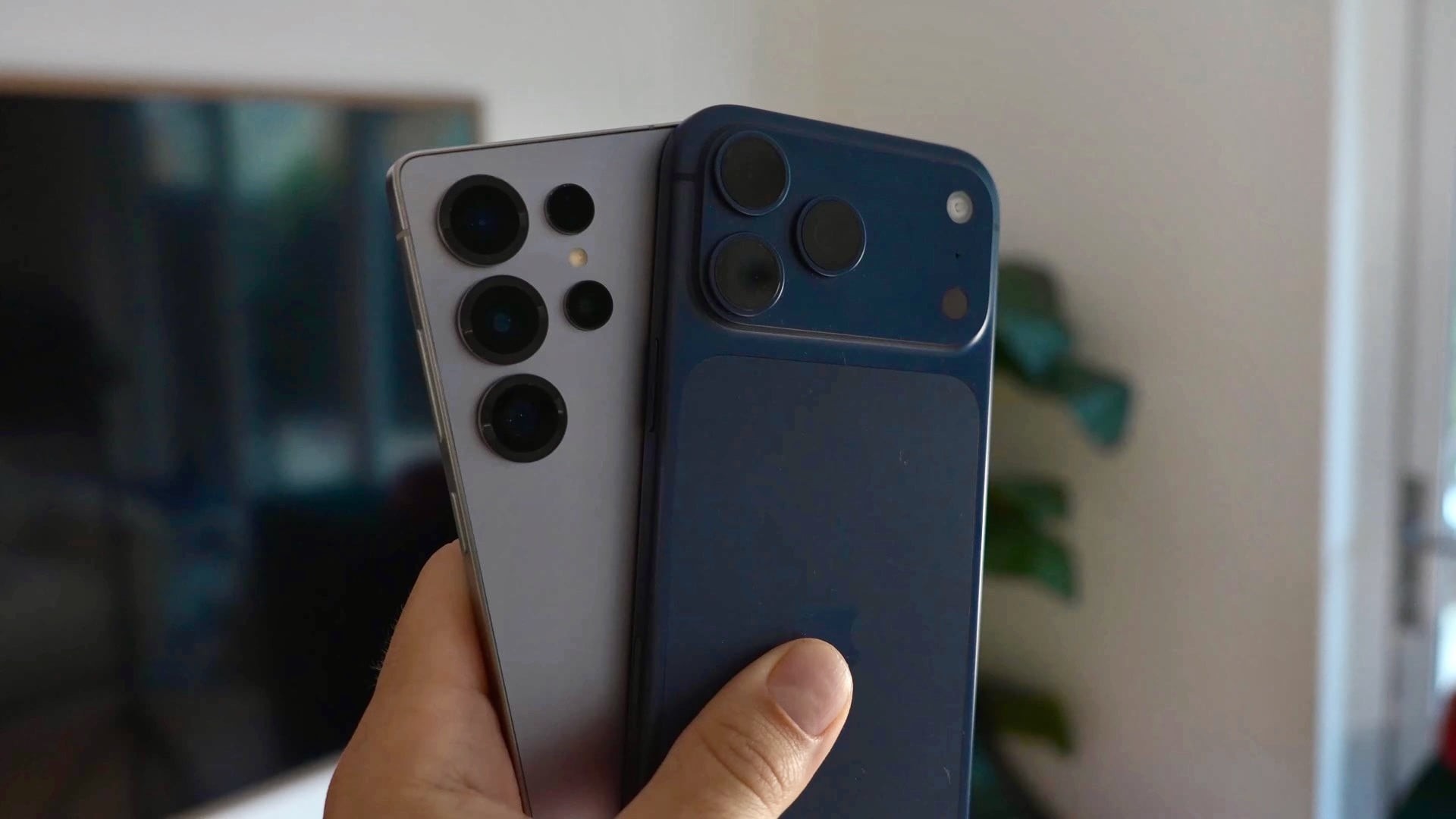
Switching from an Apple device to an Android smartphone can feel unfamiliar at first due to a completely different interface logic. Fortunately, the flexibility of the One UI interface on Samsung Galaxy devices allows you to bring the look and feel remarkably close to the iOS ecosystem. This step-by-step guide will help adapt your new phone to familiar standards.
- Setting up iOS-like navigation gestures for fluid control.
- Organizing the home screen layout to mimic app placement.
- Customizing the lock screen style with widgets and clock fonts.
- Applying matching color palettes and wallpaper slideshows.
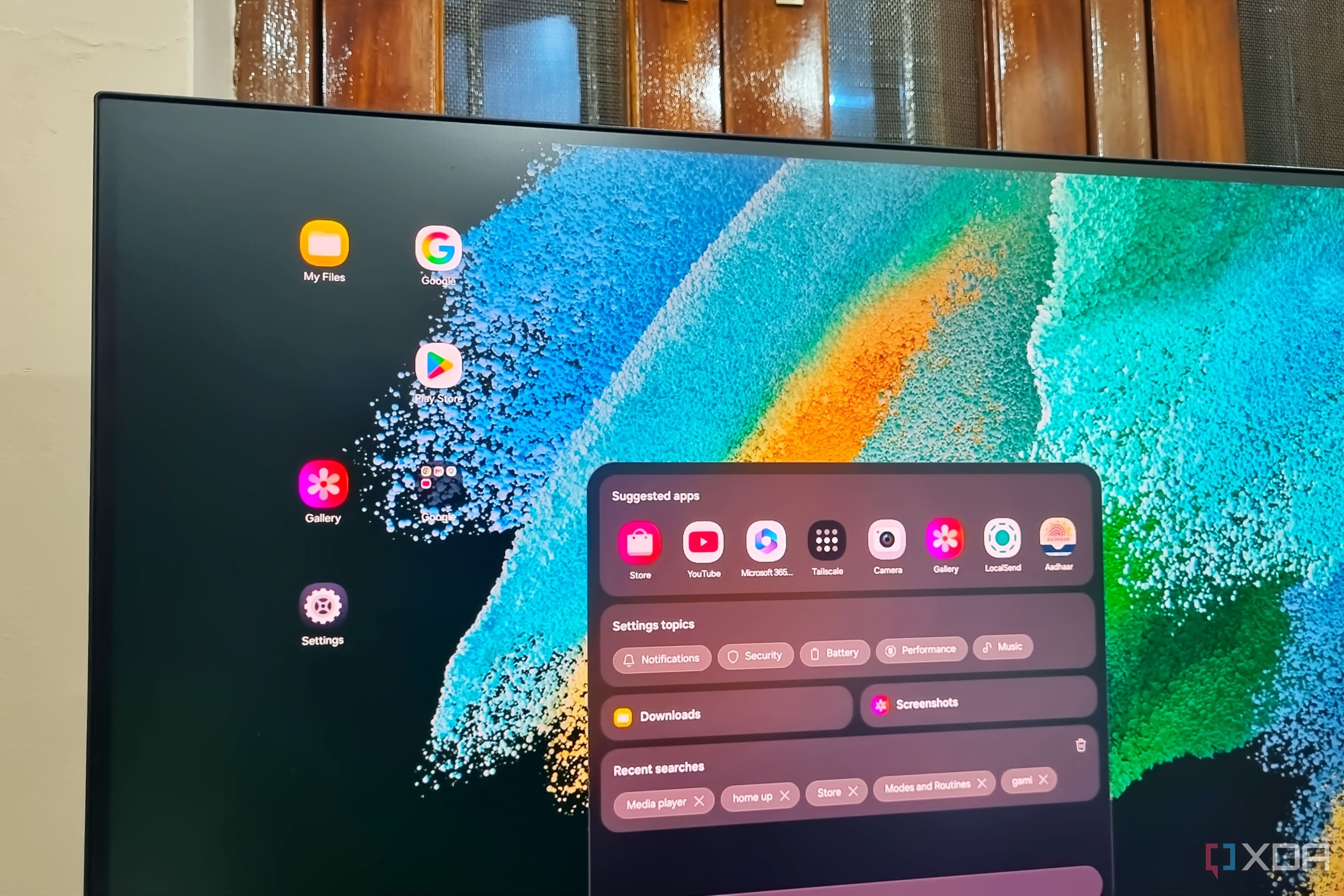
Configuring navigation gestures and home screen The first step toward a familiar control scheme is replacing traditional Android buttons with fluid gestures. Swipe up from the bottom of the screen to return to the home screen, and hold your finger for a second to view recent apps. Swiping right along the bottom edge lets you quickly cycle through previously opened applications, mirroring iOS behavior. To ensure all installed apps appear directly on home screen pages rather than a separate app drawer, long-press the home screen, access settings, and choose the home screen-only layout. You can also enable the swipe-up gesture for Finder to easily search for apps and files, similar to Apple's spotlight search.
Customizing wallpapers and system color palette Visual aesthetics play a huge role in replicating the iOS experience on a Galaxy device. Long-press an empty area on your home screen, tap Wallpaper and style, and choose from featured backgrounds or select up to 15 photos from your gallery to create an automatically rotating lock screen slideshow. Enabling the color palette toggle allows system elements to automatically adapt their hues based on your current wallpaper. Furthermore, turning on the option to apply the palette to app icons ensures a cohesive, minimalist visual style across your entire app grid.
Personalizing the lock screen and interactive widgets Samsung's lock screen offers deep customization options to match the aesthetic of modern iPhones. Pinch the home screen, go to wallpaper settings, and tap the clock to adjust its font style, thickness, and color. Choosing the second clock style and enabling the date above the clock closely replicates the iOS lock screen layout. Below the clock, you can add up to four useful widgets such as battery levels, weather updates, and daily activity trackers. Customize the shortcut icons in the bottom corners to provide instant access to essential tools like the flashlight and camera with a simple swipe.
What this means for users These extensive customization capabilities make the transition from iOS to Android smooth and frictionless for users accustomed to Apple's ecosystem. Samsung Galaxy owners get the best of both worlds: advanced hardware performance combined with an interface tailored to their exact visual preferences and habits.
Source: - SamMobile