Why your AirPods won't connect to your iPhone and how to fix it
Trouble connecting AirPods to your iPhone? Learn the main reasons for pairing failures, battery checks, firmware updates, and reset methods.
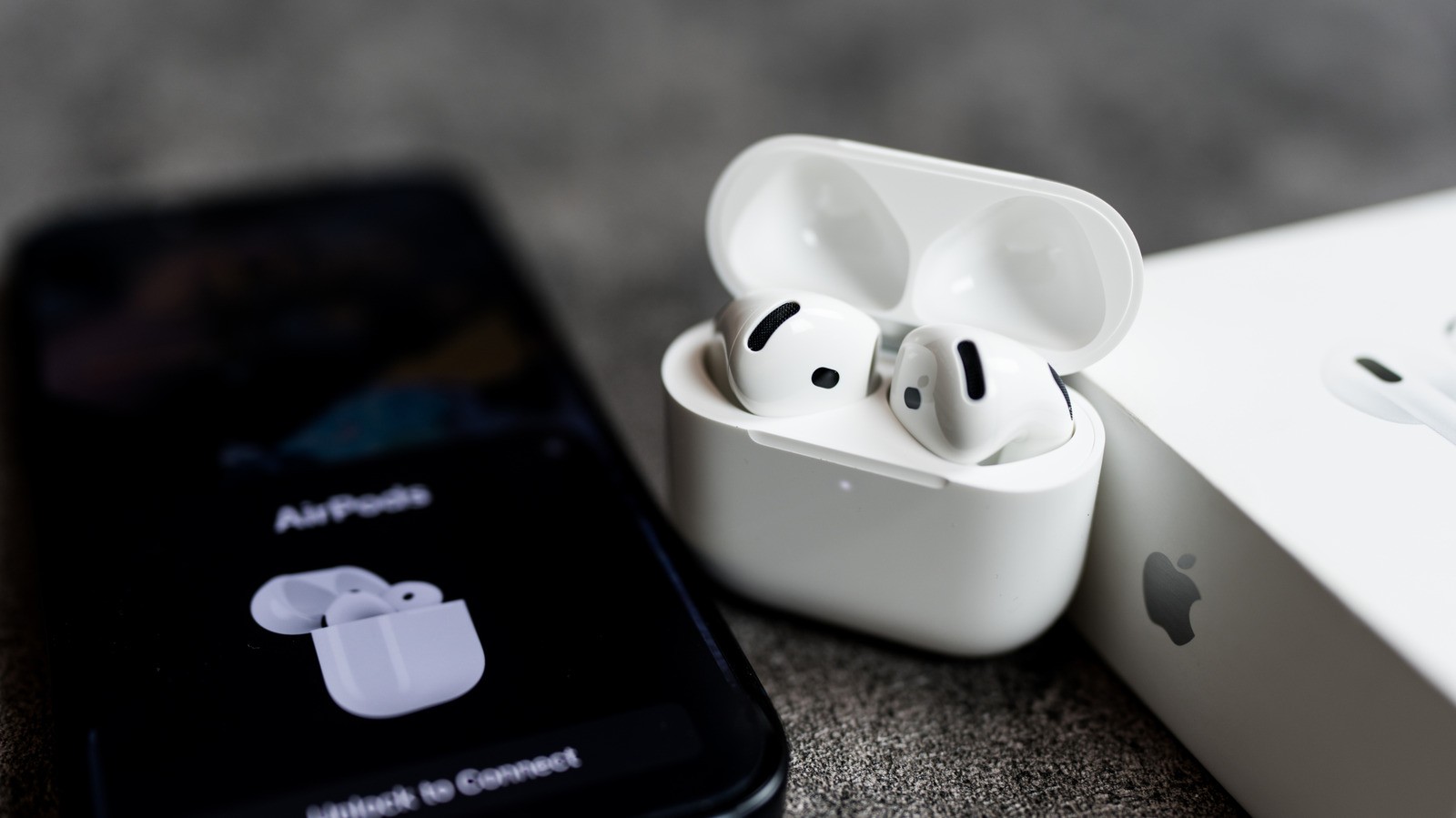
Apple AirPods are usually simple to pair with an iPhone, but users occasionally run into connection issues. Sometimes the device fails to show up entirely or sound plays through only one earbud. Fortunately, most of these pairing problems can be resolved on your own by adjusting a few settings or performing a quick reset.
- Key failure causes: drained battery, auto-switching glitches, outdated firmware, or turned-off Bluetooth.
- Charging the earbuds and cleaning the charging contacts often resolves issues when devices won't power on.
- Resetting the AirPods to factory settings helps restore a stable connection with the iPhone.
- Hardware failures may require contacting Apple Support for official service.
Checking the battery and charging case
One of the most common reasons AirPods fail to connect to an iPhone is a completely drained battery. If the battery inside the earbuds or the charging case is totally depleted, the device won't even show up on your smartphone to warn you about low power. Place the earbuds into the case and plug it into a power source for a few minutes to check the indicators.
Dirt and earwax buildup on the charging contacts can also prevent AirPods from charging properly even inside the case. If they still do not respond, gently clean the contacts and earbuds using a soft cotton swab. Ensure your cables and adapters are fully functional before moving on to further troubleshooting steps.
Read alsoiOS 27.2 Update: 14 New Features for Your iPhoneBluetooth settings and automatic switching features
AirPods linked to your Apple Account can automatically switch between your iPhone, iPad, and Mac based on active audio playback. While convenient, this feature can sometimes route your connection to the wrong device. Hitting the play button on your iPhone will usually bring the audio connection back to your phone.
Make sure Bluetooth is enabled in your iPhone settings, as wireless earbuds require it to function. Open your Bluetooth device list and check the audio output controls in the Control Center under the AirPlay button to verify your AirPods are selected as the active output device.
Updating firmware and resetting your AirPods
Outdated iOS versions or older AirPods firmware can introduce pairing bugs and connection drops. Check for system updates by going to Settings > General > Software Update, and verify your AirPods firmware version matches the latest official specifications provided by Apple.
If software fixes do not work, reset and re-pair your AirPods. Place both earbuds inside the case, open the lid, and enter pairing mode using the correct button or tap combinations for your model. For instance, AirPods 4 require double-tapping the front of the case until a white light flashes, while older models rely on pressing the back setup button.
What to do in case of hardware failures
If none of these troubleshooting steps successfully reconnect your AirPods to your iPhone, the underlying issue might be a hardware malfunction. In such scenarios, your best course of action is to contact Apple Support to request professional assistance or a replacement.
Replacements may be provided free of charge if your AirPods are still covered under the standard one-year limited warranty or if you have an active AppleCare+ protection plan.