5 essential iPhone security settings you should change right now
Discover five critical iOS security settings to protect your data, including lock screen limits, app privacy checks, and stolen device protection.
Your iPhone offers powerful built-in security features, but many of them require proper manual configuration to deliver maximum protection. Adjusting these key privacy and access settings helps safeguard your personal data and prevents unauthorized access if your device is lost or stolen.
- Limit Lock Screen access to Control Center and notifications to prevent unauthorized actions.
- Use the Safety Check tool to audit app permissions and manage location sharing.
- Secure sensitive apps with Face ID or hide them in a dedicated hidden folder.
- Enable Stolen Device Protection to block critical account changes away from familiar locations.
Securing your Lock Screen against unauthorized access
The Lock Screen is the first thing anyone sees when they turn on your iPhone display. By default, it allows anyone to open the Control Center or use Siri, which can make it easier for a thief to switch your phone into airplane mode. To fix this, open Settings, go to Notifications, tap Show Previews, and select When Unlocked.
Next, navigate to Face ID & Passcode in your settings and scroll down to Allow Access When Locked. Disable features like Control Center and search to prevent anyone from interacting with your phone without successful biometric authentication. These features automatically become available again once you unlock your device.
Read alsoHow iOS warns you about data leaks and compromised passwordsReviewing app permissions and hiding sensitive apps
Many apps request access to your location, camera, or photos upon first launch, leading users to grant permissions without thinking twice. The Safety Check feature, located under Privacy & Security, walks you through reviewing these permissions and revoking unnecessary access with a single tap.
Starting with iOS 18, Apple also lets you require Face ID or Touch ID for specific apps, or hide them entirely inside a hidden folder within the App Library. This protects your personal notes, messages, and financial accounts even if your unlocked phone is temporarily handed to someone else.
Disabling tracking and enabling Stolen Device Protection
To minimize data collection by advertisers, head to Privacy & Security, tap Tracking, and turn off Allow Apps to Request to Track. You can also turn off Personalized Ads under Apple Advertising to reduce tailored ad targeting based on your search history.
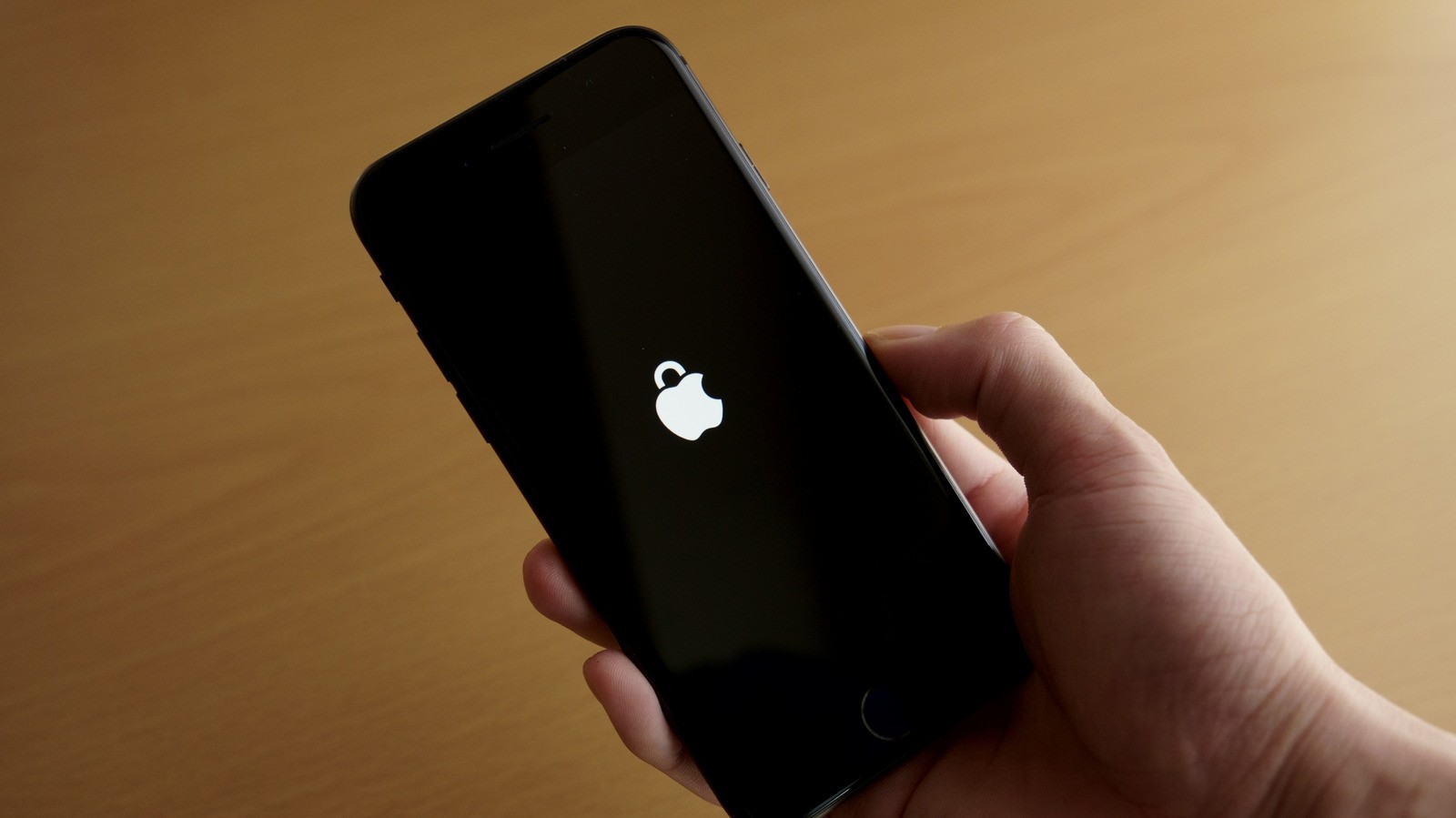
One of the most vital security additions is Stolen Device Protection. When enabled, your iPhone detects when it is away from familiar locations like home or work, requiring biometric authentication and a one-hour delay for sensitive actions such as changing your Apple Account password or viewing saved passwords.
Why this matters for users in Uzbekistan and the CIS
Implementing these security practices is essential for smartphone users everywhere, including across Uzbekistan and the CIS region. As device theft and digital fraud remain global concerns, turning on Stolen Device Protection and locking down notification previews significantly lowers security risks in crowded urban areas.