Android screen pinning: how to lock your phone to one app
How to protect your privacy on Android when sharing your phone. Use screen pinning to lock your device to a single app securely.
·2 min read
Smartphones contain private conversations, emails, photos, and personal data that we prefer to keep secure. When someone asks to borrow your phone for a quick call or to look at a photo, you might not want them browsing through the rest of your device. Android features a built-in tool to address this exact situation without requiring any extra downloads.
- Screen pinning locks your Android device to a single app until you choose to exit.
- Users cannot navigate to the home screen, open menus, or switch to other apps.
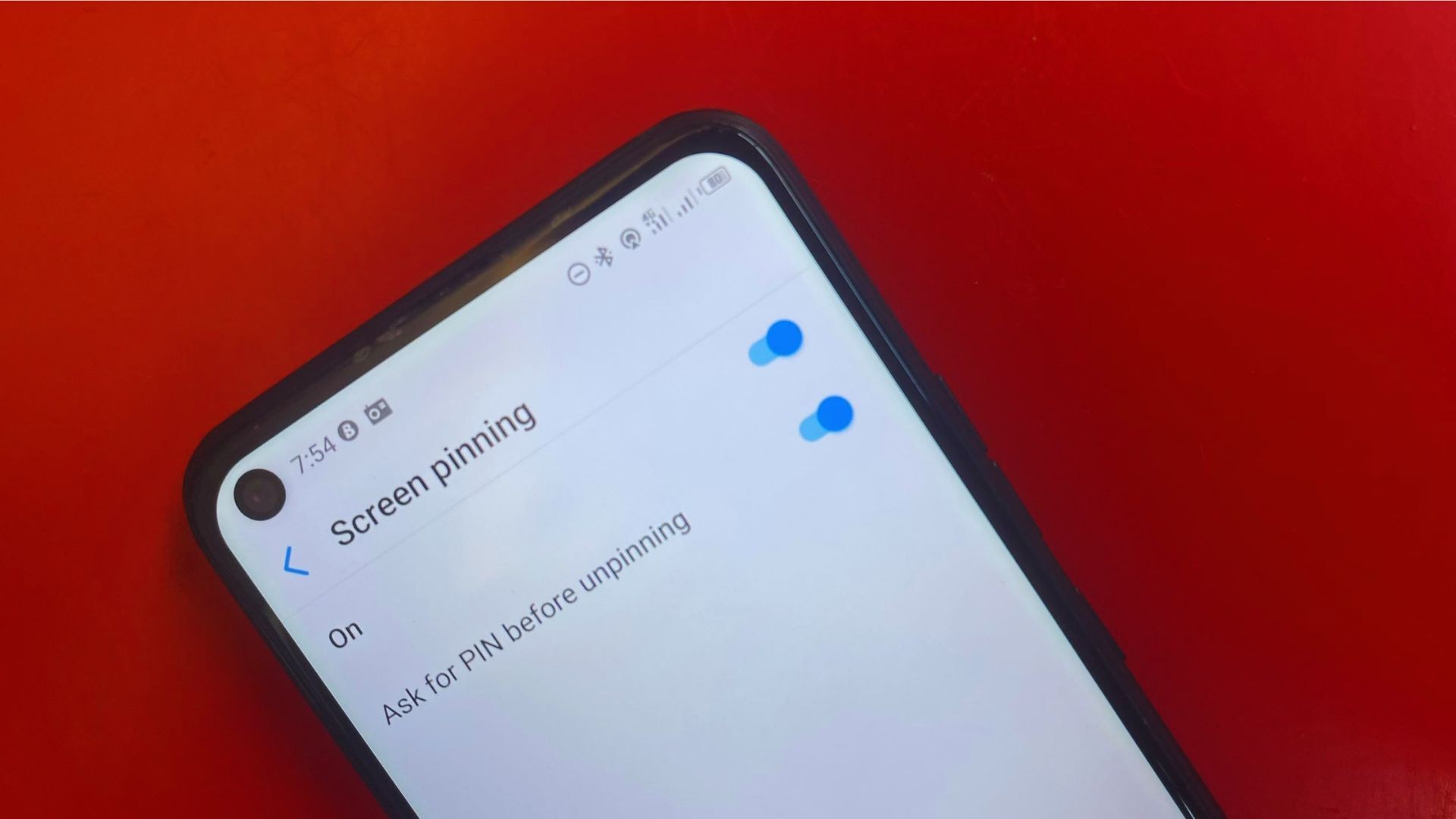
- You can configure the system to ask for your PIN code before unpinning the app.
- Notifications and the drop-down notification panel remain completely inaccessible.
How screen pinning works on Android Screen pinning restricts navigation so that your phone stays inside one active application. If you open your photo gallery or browser and pin the app, another person can view the content inside that specific app but cannot return to the home screen or launch anything else. This prevents accidental or intentional browsing of your personal data. The feature operates natively on the operating system, meaning you do not need to install third-party apps to make it work. It gives you a quick way to hand over your device safely.
Finding and enabling screen pinning in settings Because different Android manufacturers customize their software layouts, finding the screen pinning feature can vary slightly by device. Typically, it is located under the Security or Security and privacy settings menu. If you have trouble locating it manually, you can simply use the search bar within your settings app and type «screen pinning» or «app pinning».
How to pin and unpin an application Once enabled, you tap the Recent Apps button, locate the app you want, tap its icon above the preview, and select Pin from the menu. The app stays locked on the screen. To unpin the application, you press and hold the Return and Recent Apps buttons simultaneously, or swipe up and hold from the bottom of the screen if you use gesture navigation.
Important limitations and security practices It is essential to understand that screen pinning restricts access to other apps, but it does not hide the information inside the pinned app itself. If you pin a browser, the person can still see your open tabs. Therefore, enabling the option to require your screen lock PIN before unpinning is a crucial security step that should not be skipped.
Source: Android Police